Put your football player on the Lock Screen, in team colors.
This is Jalen, number 2. One photo on the field, one minute in WallyPaper, and Jalen is on the Lock Screen with the name in gold script behind and a background slid to just the right purple. Every step happens on the iPhone; the photo is never uploaded.


-
Start with a photo from the field.
This is the photo we started from: Jalen in a royal blue uniform, ball under one arm and helmet in the other hand, with the turf, the stands and a team banner behind. No cropping, no editing, no tracing around the shoulder pads first.
Open WallyPaper and tap Choose a Photo, or Take a Photo for a new one. You can also start from the Photos app: open the photo, tap Share, then WallyPaper, then Make Wallpaper.
Best results: helmet off, face clearly in view, and good light. Picture day photos and sideline snaps both work.

Before: the field, the stands and a team banner. -
WallyPaper lifts Jalen off the field. Automatically.
A second later, the field, the stands and the banner are gone. WallyPaper finds Jalen in the photo, lifts the player off the background, ball and all, and places Jalen's face below the clock, clear of the Lock Screen controls.
This runs on your iPhone with Apple's Vision framework, so the photo never leaves your phone. Turn on Lock Screen preview to see the time and buttons over your design while you work.
Here Jalen is on a plain navy, one of the Solid colors on the Background tab. Next, something louder.
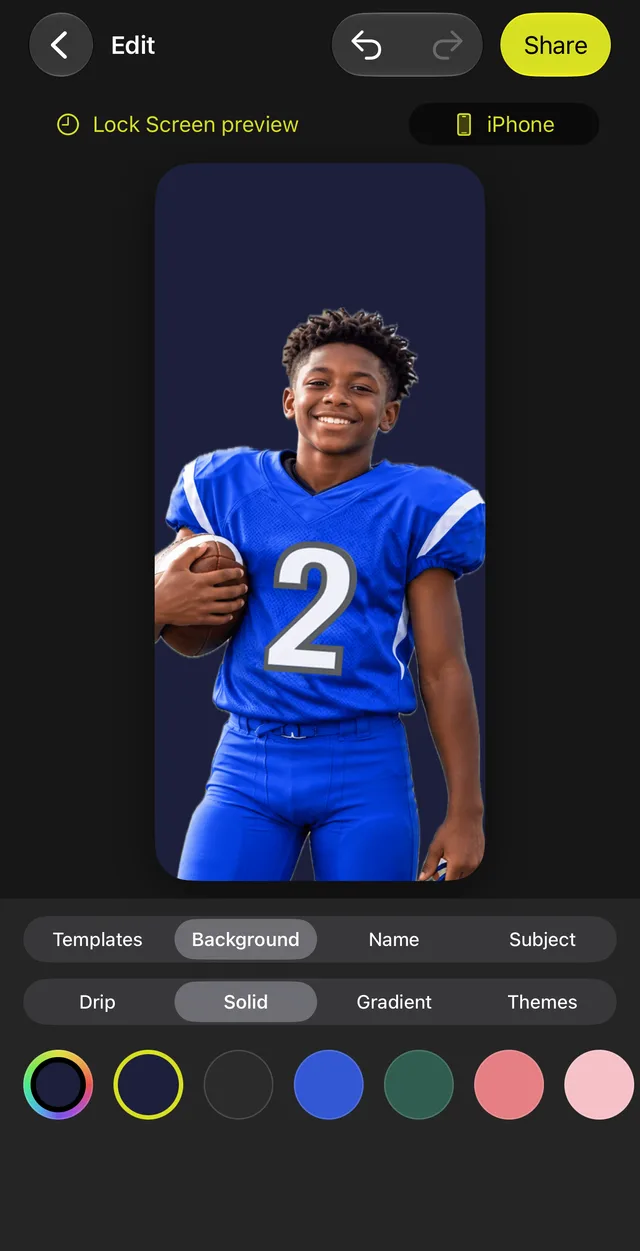
The editor, right after the lift: Jalen on plain navy. -
Slide the Hue to your team colors.
On the Background tab, open Drip for bold illustrated backgrounds. We picked Nebula, then dragged the Hue slider until its pinks turned to purples that set off Jalen's royal blue jersey. Slide it until it suits your team's colors; the round arrow sets it back.
Then open the Name tab, type the name and tap Behind. Push the size slider up and drag the name down until Jalen's hair overlaps the bottom of the letters, so the name looks like it's behind the player, not just above. Jalen's is in the Cursive style, in gold.
We also pinched Jalen bigger, so the jersey number fills the bottom of the screen.
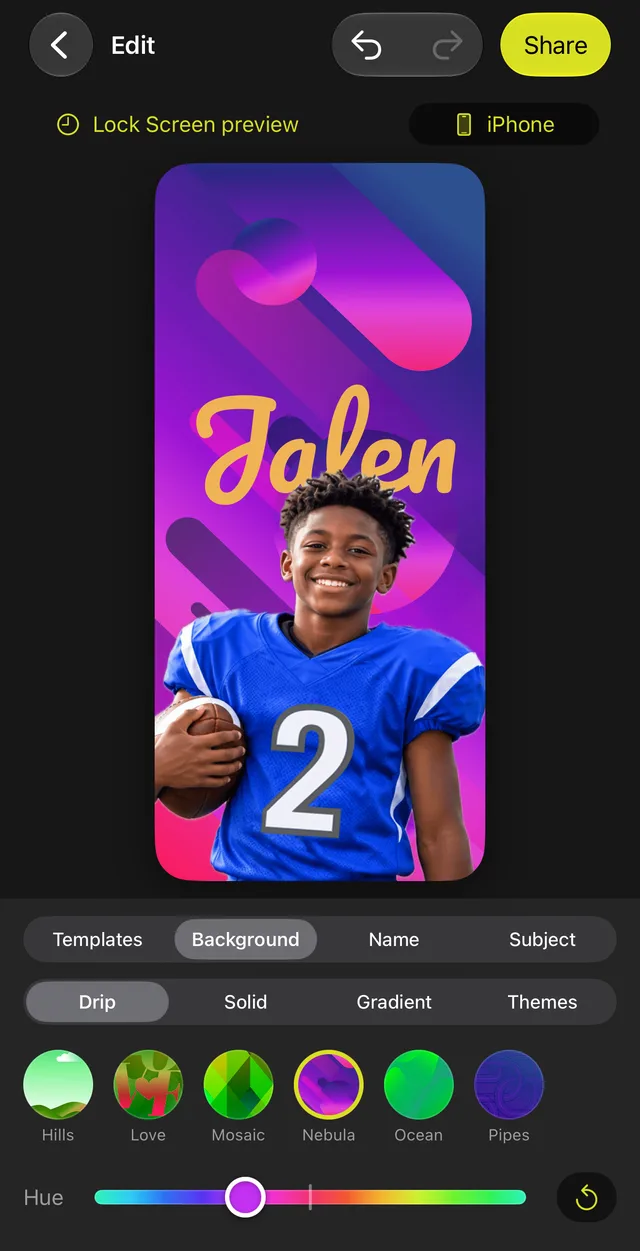
Nebula, with the Hue slid toward purple and the name in gold behind Jalen. -
Ta-da! Set it as your Lock Screen.
Tap Share, then Set as Wallpaper. WallyPaper renders the wallpaper at your iPhone's exact screen size and saves it to Photos, then shows you the last step: in Photos, tap Share, then Use as Wallpaper, then Add. The clock lands in the space above the name.
The wallpaper is also saved in your WallyPaper library, so you can reopen it for a new number, next season's photo or a different backdrop.
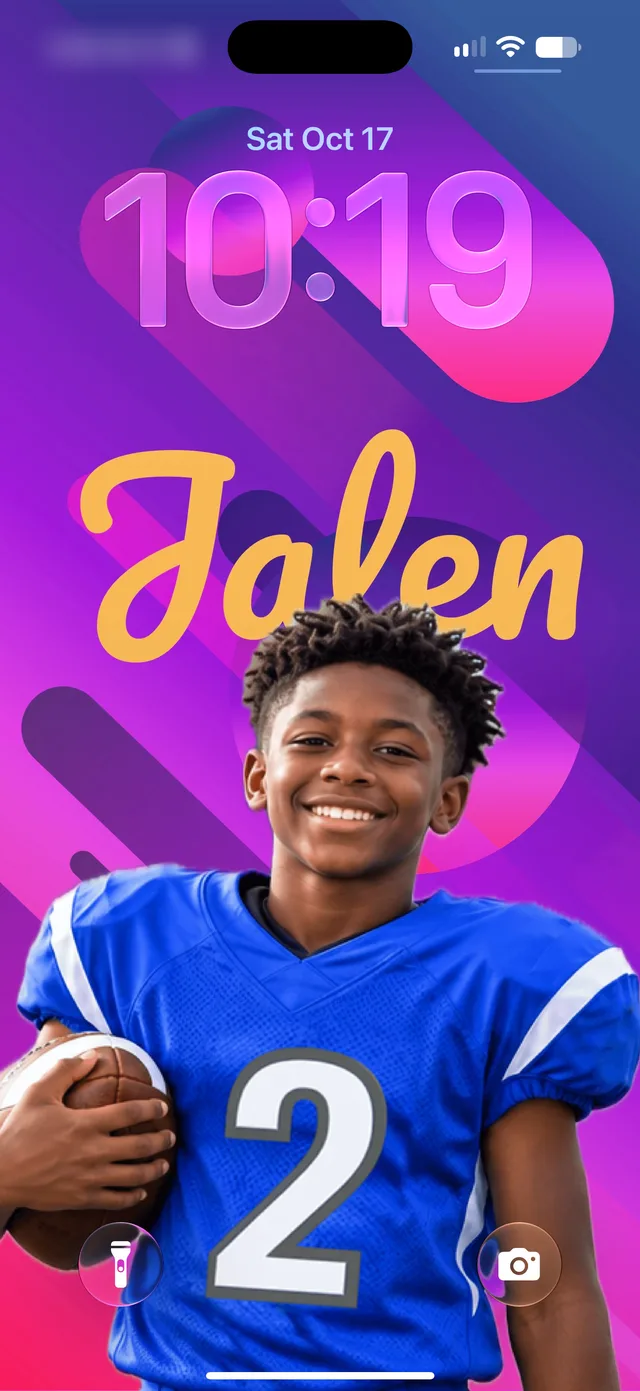
Jalen on the Lock Screen, with the name behind.
Try it with your own player.
Your running back, your lineman, or the whole team. Three things make a football wallpaper work:
Helmet off
WallyPaper looks for the face to place it below the clock, and a face mask can hide it. Save the helmet for the action shots.
Team colors
Every Drip background has a Hue slider. Slide it until the background matches the jersey, or lands on a color that sets it off.
A little overlap
Drag the name down until the top of the head covers the bottom of the letters. Short names and nicknames get the biggest letters.
WallyPaper is free to download, needs no account, and never uploads your photos. See Addy's name-behind walkthrough, Charlie the puppy's, browse more walkthroughs, or get help.
Football wallpapers, answered.
Can I add the jersey number?
Yes. The name can be up to 20 characters, so "Jalen #2" or a nickname and number fits. Shorter names get the biggest letters.
Can I match our team colors?
Yes. Every Drip background on the Background tab has a Hue slider that turns its colors around the color wheel, and the round arrow next to it sets it back. You can also pick a solid color or a gradient, and any color for the name.
Can I make the same look for the whole team?
Yes. Once you like a look, tap Make Your Own in the Templates row and save it as a template: the background, the name's style and where it sits. Then start each player's wallpaper from their own photo, tap your template and type their name.
Can I make a trading card instead?
Yes. The Trading Cards template puts your player on a collectible-style card with their name on it, with nine cards in three finishes.
Does WallyPaper upload my photo?
No. Your player is lifted from the photo on your iPhone by Apple's Vision framework, and the app makes no network connections of its own. There is no account, no analytics and no tracking. Read the privacy policy.
Is it free?
WallyPaper is free to download, and wallpapers made with the free version carry a small WallyPaper mark near the bottom. WallyPaper Pro removes it and unlocks the whole app: $2.99 a month, $19.99 a year with a 7-day free trial for new subscribers, or $29.99 once. More about Pro, in Support.
Which iPhones does it work on?
Any iPhone with iOS 18 or later. It works offline; only App Store purchases need a connection.