Turn a baby photo into a Lock Screen wallpaper, with their name on it.
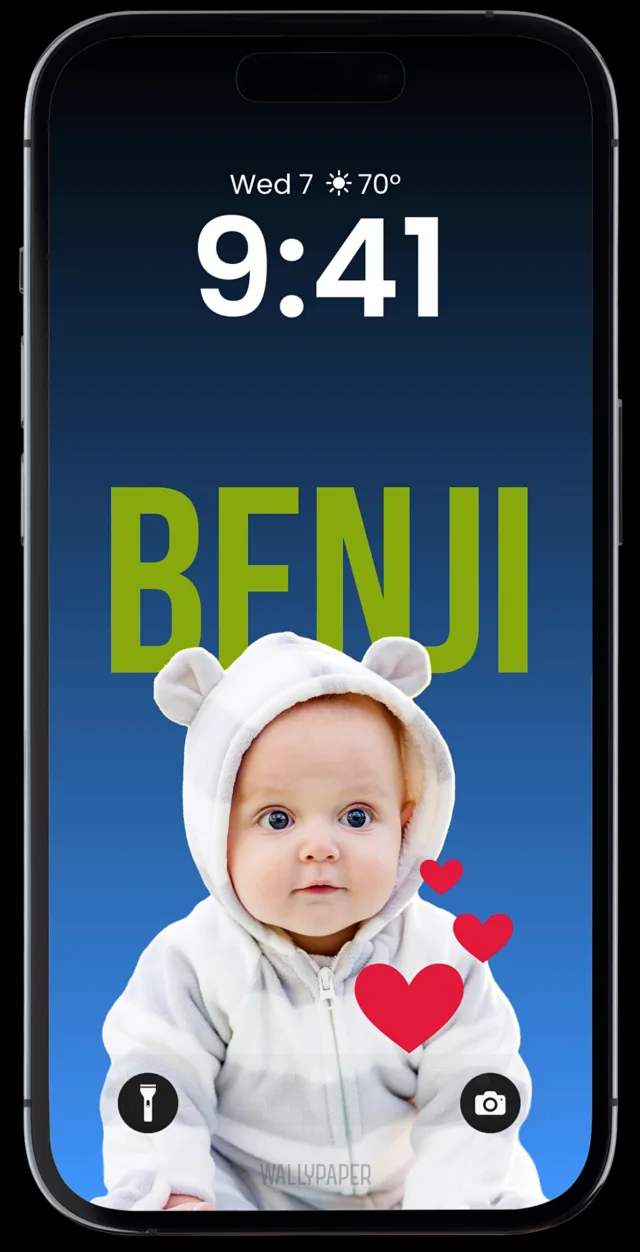
This is Baby Benji. One snapshot on a picnic blanket, one minute in WallyPaper, and he is on the Lock Screen with his name above him. Every step happens on the iPhone; the photo is never uploaded.

-
Start with any photo.
This is the photo we started from: Benji on a blanket in a sunny park, with trees, grass and a whole lot going on behind him. No cropping, no editing, no tracing around him first.
Open WallyPaper and tap Choose a Photo, or Take a Photo for a new one. You can also start from the Photos app: open the photo, tap Share, then WallyPaper, then Make Wallpaper.
Best results: their face clearly in view, reasonably close, and well lit. Outdoor daylight, like this one, is ideal.
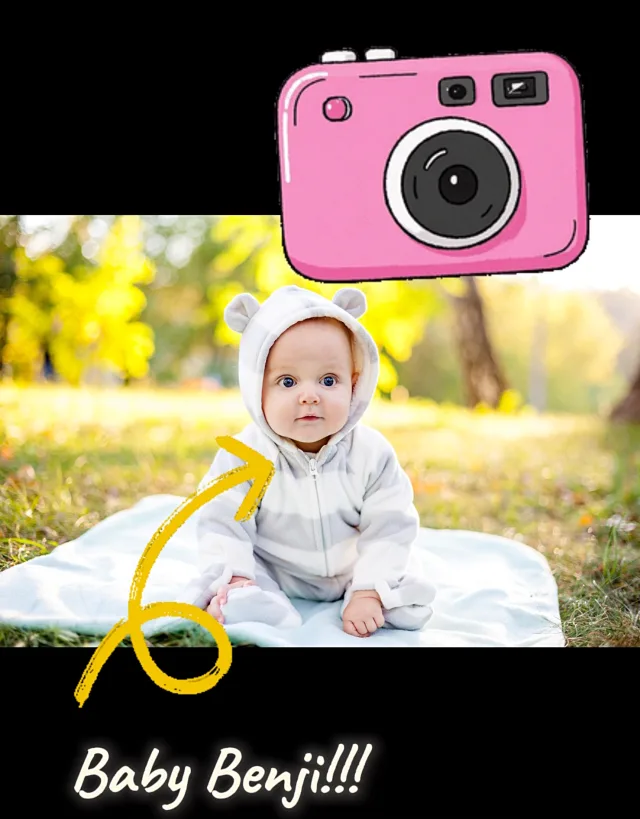
Before: an ordinary snapshot with a busy background. -
WallyPaper lifts Benji out of the photo. Automatically.
A second later, the blanket, the grass and the trees are gone. WallyPaper finds the baby in the photo, lifts him off the background and places him with his face in view, clear of the clock and the Lock Screen controls.
This runs on your iPhone with Apple's Vision framework, so the photo never leaves your phone. Turn on Lock Screen preview to see the time and buttons over your design while you work.
From here, tap a template (Minimal, Sunset, Sticker, Birthday, Polaroid, Trading Cards and more) or open the Background tab and pick a solid, gradient, mesh or holiday theme. If WallyPaper can't find a subject, tap Use Whole Photo and carry on.
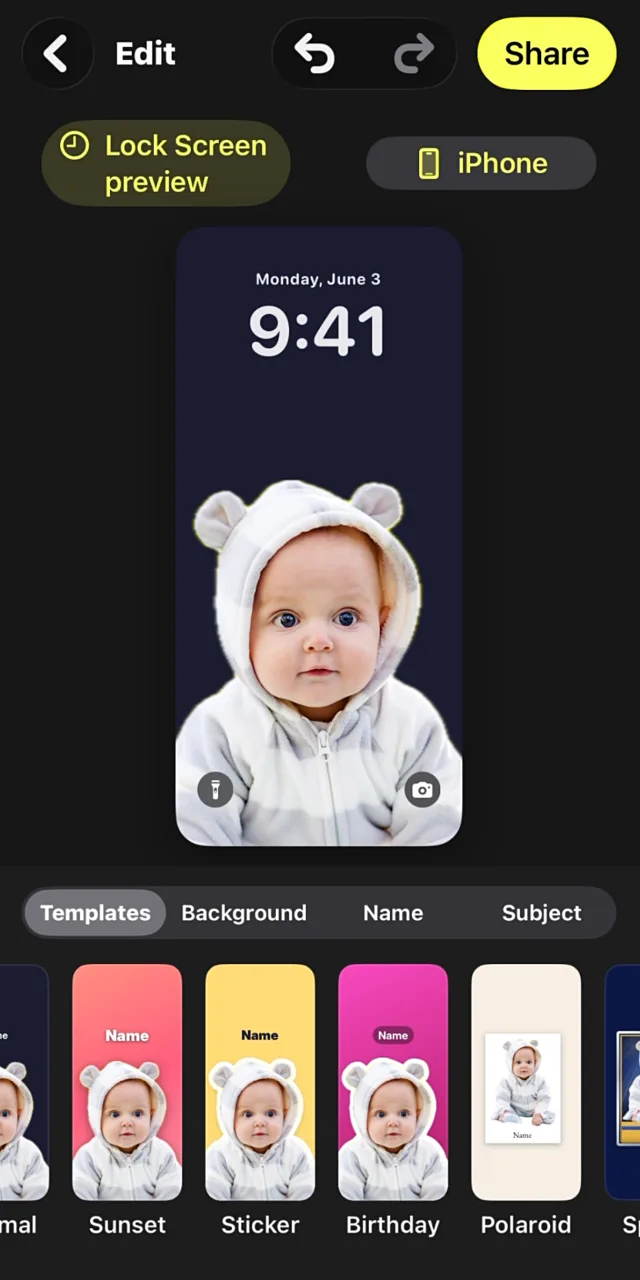
The editor, right after the lift: Benji on a plain backdrop, templates along the bottom. -
Make his name BIG!
Open the Name tab and type a name or nickname. For Benji we picked the Modern style (tall capitals), the Plain effect, a green from the color row, turned on Behind so the letters sit behind his head, and pushed the size slider up until BENJI ran nearly edge to edge. Drag the name anywhere and pinch to resize it.
Six styles (Modern, Classic, Editorial, Handwritten, Cursive and Mono), four effects (Plain, Shadow, Outline and Pill), three weights and ten colors, or any color you like.
The hearts came from the Subject tab's sticker picker: hundreds of emoji, drawn as stickers you can drop anywhere. A blue gradient from the Background tab finished the look.
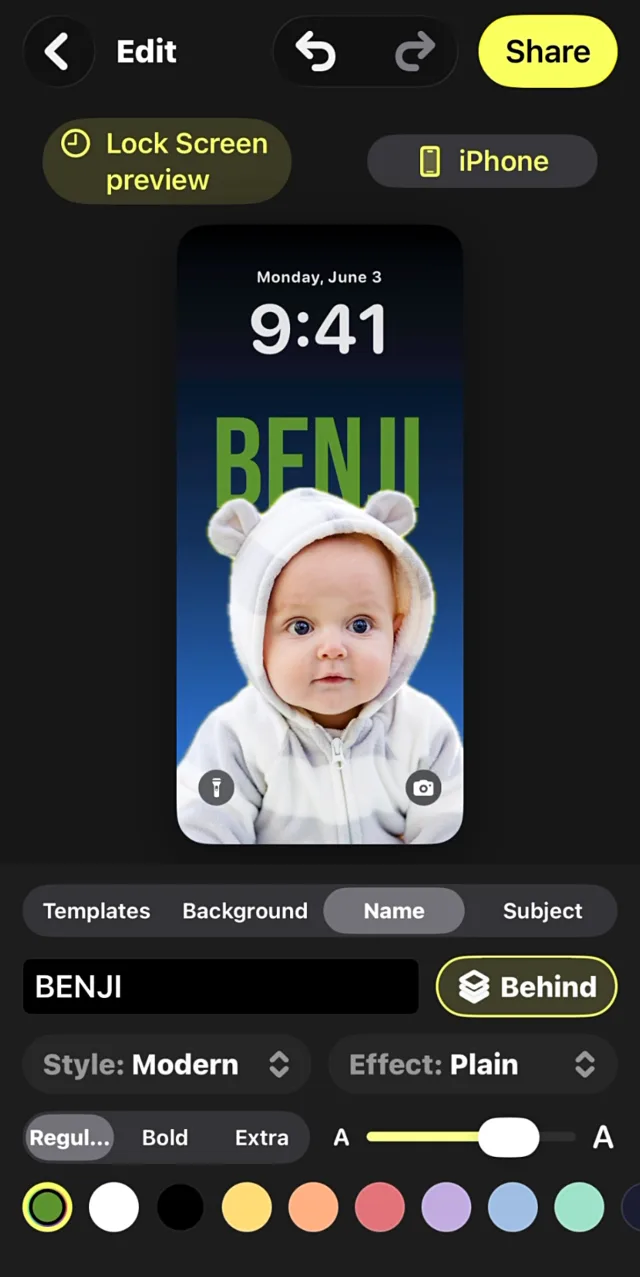
The Name tab: BENJI in Modern, green, sitting behind him. -
Ta-da! Set it as your Lock Screen.
Tap Share, then Set as Wallpaper. WallyPaper renders the wallpaper at your iPhone's exact screen size and saves it to Photos, then shows you the last step: in Photos, tap Share, then Use as Wallpaper, then Add. iOS adds its depth effect automatically when it fits, so the time can tuck in behind Benji's ears.
The wallpaper is also saved in your WallyPaper library, so you can reopen it for a Halloween backdrop, a birthday theme when the day comes, or the next photo that deserves the spot.
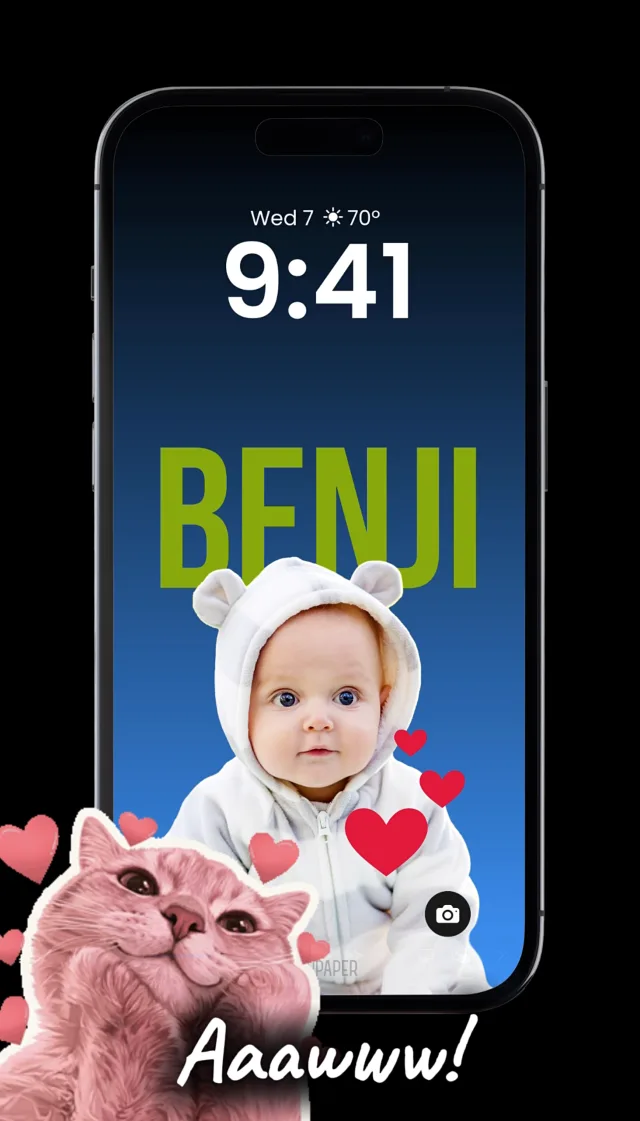
Aaawww. Benji on the Lock Screen, hearts and all.
Try it with your own photo.
Any photo of your baby, toddler or big kid works the same way, and so does the dog. Three things make the lift cleaner:
Good light
Daylight or a bright room. The subject lift is done on your iPhone, and it finds edges more easily when the face and clothes are well lit.
Face in view
WallyPaper frames the face clear of the clock, so a photo where the face is visible and reasonably close gives it the most to work with.
Any background
A blanket in the park, the sofa, a car seat. Busy backgrounds are fine; that is the part WallyPaper removes.
WallyPaper is free to download, needs no account, and never uploads your photos. See everything it can do, browse more walkthroughs, or get help.